Sunday, June 13, 2021

How to Solve SVCI 2020 “Spawn app filed 5” Error


SVCI 2020 Software, sometimes, an error message will be reported “Spawn app filed 5”. Don’t worry, that means Dongle serial port communication error. It’s easy to solve quickly using the method as below.

Caused the error reason:

There is something wrong with the computer operating system or software.

The solution:

1.Change another computer which has installed Win10 Pro 64bit.

2.Uninstall the current software and download newest SVCI 2020 software again.

Free download SVCI 2020 V11.0:

How-to-Solve-SVCI-2020-“Spawn-app-filed-5”-Error-1

https://mega.nz/file/r3o0zCBY#D9PZuYe0ydVH1J_czcLgcXIpxBFj2dIz9Sc4SzPKGtM

Size: 5.97 GB

No password! No risk!

Or download the software from official website: http://flyobd.com/shop/download-center/

How-to-Solve-SVCI-2020-“Spawn-app-filed-5”-Error-2

Sunday, March 7, 2021

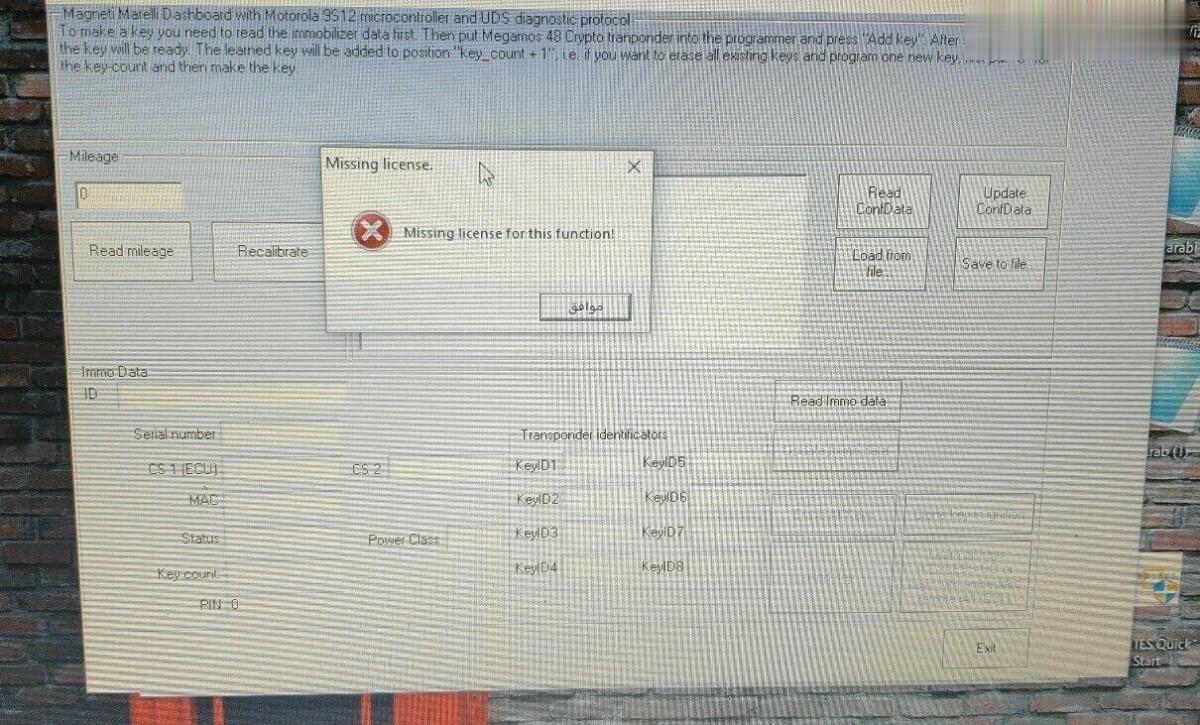
Solved! SVCI 2020 ABRITE Commander Software License Missing

Device: SVCI 2020 ABRITE Commander
Car Model: Skoda Fabia 1.2 2005; Citroen Jumper 2.0 2012
Problem Description:
Failed to read IMMO, CONF data, mileage and SRS, showing the license was missing.

Solution to SVCI 2020 software license missing:
Step 1: Open the SVCI 2020 installation directory.
Step 2: Enter “C: Program Files (x86)\Abrites Commander Software List\Common2\” directory and copy VW folder/Citroen folder to “C: Program Files (x86)\Abrites Commander Software List\Common\” directory.

The solution is also applicable to the following situations (just change the folder to be copied based on your car model):
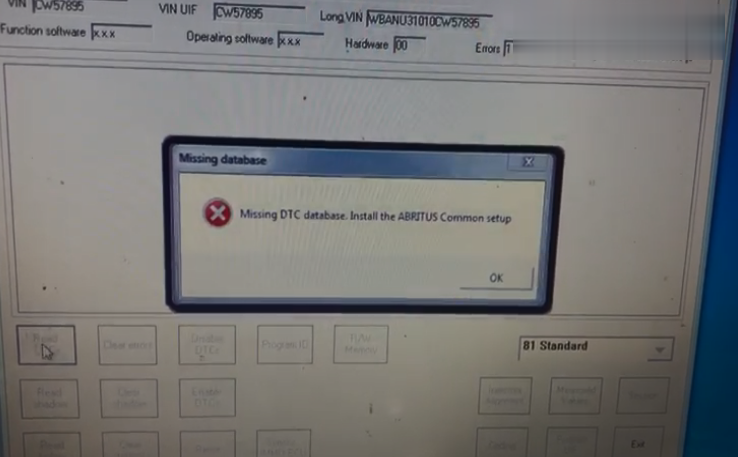
Situation 1: When you open the Abrites commander BMW v10.4/v10.5 software with SVCI2020/SVCI2019 device, the following error will be reported when reading the DTC functions.

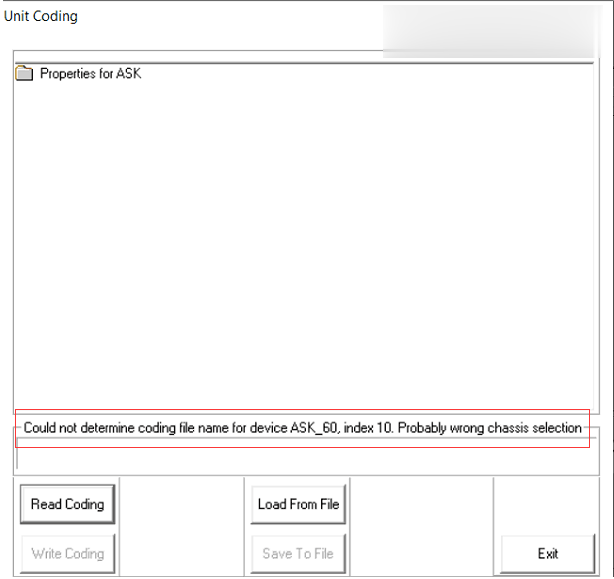
Situation 2: When you want to program the radio eg function with BMW software, it will appear the error information like below figure.

Solution:
Step 1: Open the SVCI2020 installation directory
Step 2: Enter “C: Program Files (x86)\Abrites Commander Software List\Common2\ ” directory and copy BMW folder to “C: Program Files (x86)\Abrites Commander Software List\Common\” directory.

Friday, March 5, 2021

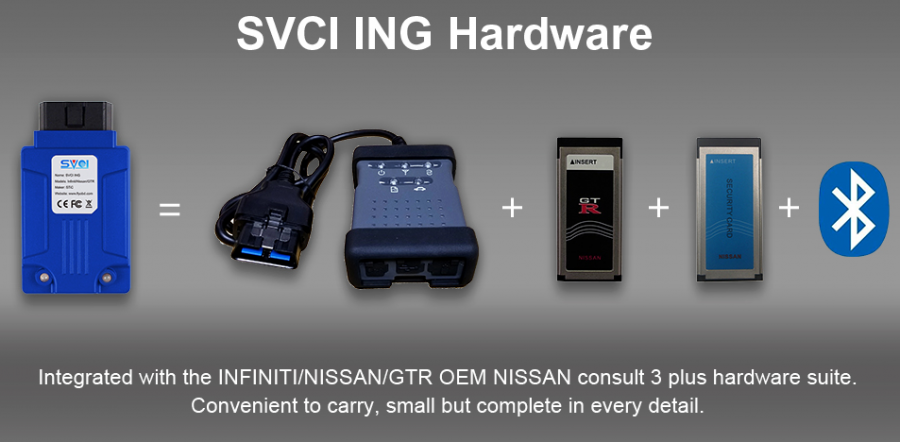
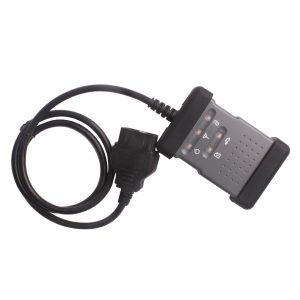
Compare Nissan Consult-3 III Plus with SVCI ING Nissan/Infiniti/GTR Diagnostic and Programming Tool

SVCI ING= Consult III Plus + Security Card + GTR Card + Bluetooth 4.0


SVCI ING Nissan Scanner:

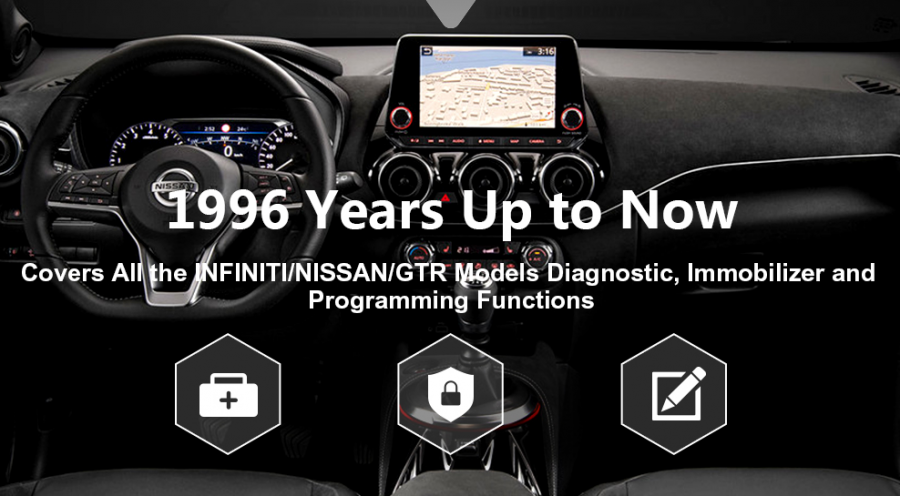
  1. Support all the INFINITI NISSAN GTR models diagnostic, immobilizer and programming functions from 1996 up to now.
  2. Improve 500 % speed for programming modules than OEM Nissan Consult 3 Plus
  3. More stable and zero mortality for modules programming
  4. Support USB power supply and Bluetooth v4.0 connection.
  5. Build-in security card and GRT card functions, immobilizer bypass password.
  6. Provide mobile android software and Windows software (BAOCHI cloud diagnostic)
  7. Language:  English, Japanese and Chinese


SVCI ING Nissan Scanner VS Nissan Consult-3 III Plus

Item SVCI ING Nissan Scanner Nissan Consult-3 III Plus
IMG
Price US$158.00 US$539.00 including shipping
Language 4 languages available: English, Japanese, Simplified Chinese and Traditional Chinese 11 languages available: English, French, German, Spanish,  Italian, Japanese, Russian, Finnish, Greek,  Chinese, Portuguese
Programming times About 3 minutes About 15 minutes
Programming mortality 0% 0%>
Immobilizer functions Immobilizer bypass password Immobilizer with  password
Security card functions Build-in Security card functions Need to purchase
GTR card functions Build-in GRT card functions Need to purchase
Support the model years 1996 years up to now 1996 years up to now
Mobile android software Contains Null
Bluetooth Contains Contains
Software update Automatic online upgrade Uncertain update (update free by download link)


Thursday, March 4, 2021

How to solve the error “Interface Not Connected ” for SVCI 2019 2020?


Problem:

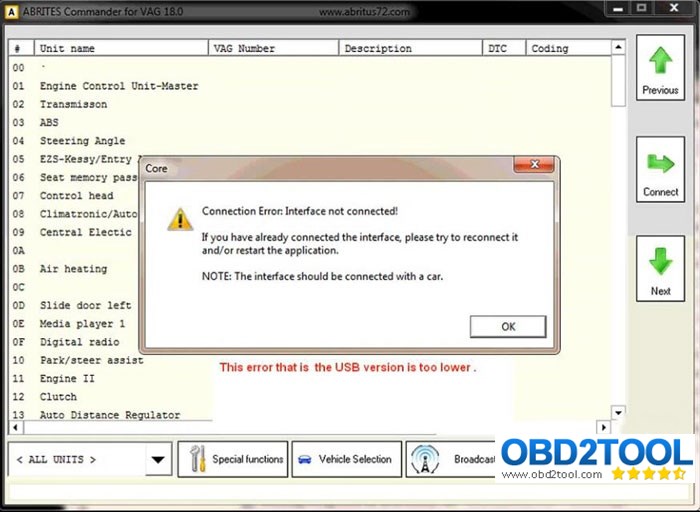
When install svci 2020 software on Win7 32bit system, it failed to load software and gave error:

“Connection Error: Interface not connected!

If you have already connected the interface, please try to reconnect it and restart the application.

The interface should be connected with a car. ”

Possible reason:

The usb driver is not compatible with windows system.

This problem will not occur if you install svci 2019 or svci 2020 software in win10 64bit professional.

The main reason is that the USB driver version is too low. By default, v2.12.28 version driver will be installed in the system, but this version driver cannot be successfully installed due to system reasons.

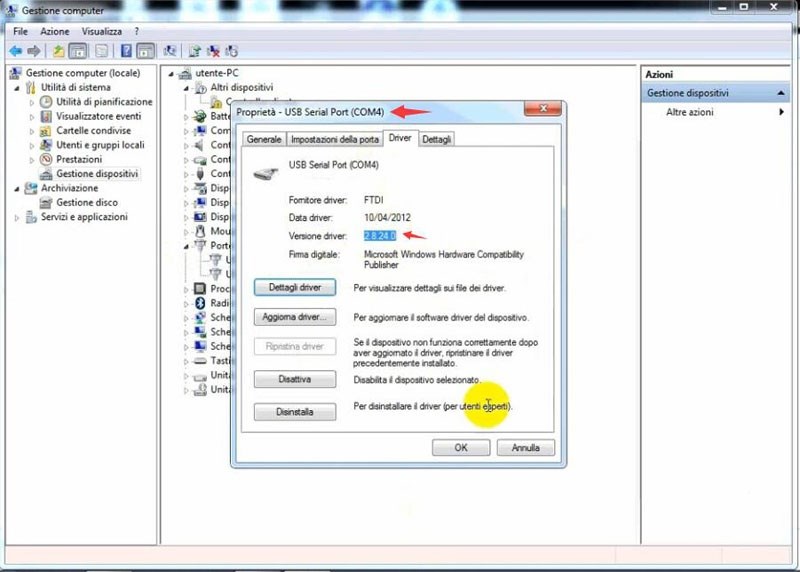
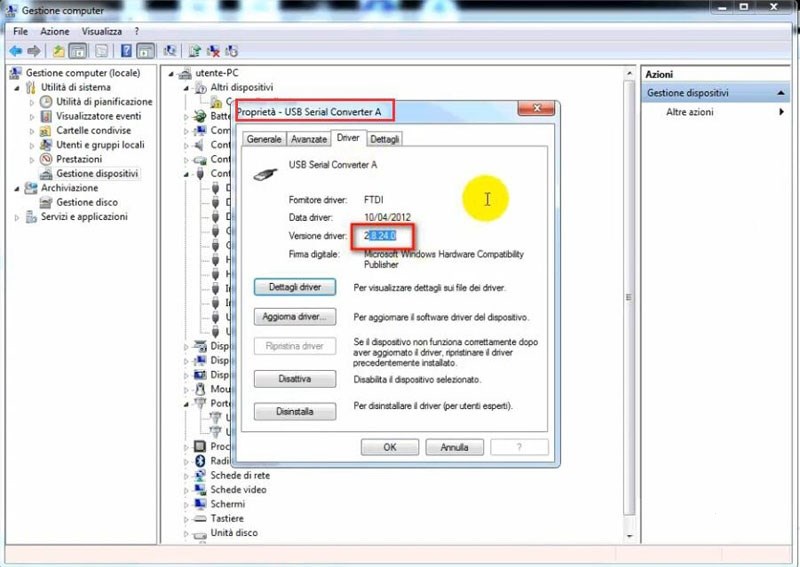
The solution is to update the USB drive v2.8.24 to v2.12.28.

Download link:

USB driver v2.12.28-x86

https://mega.nz/#!qOIjFAbS!3RGqKbM9wAxihMB44mNKC58DbNhL66O0GLDlFY8gbYE

USB driver v2.12.28-x64

https://mega.nz/#!6LozXIwC!3RGqKbM9wAxihMB44mNKC58DbNhL66O0GLDlFY8gbYE

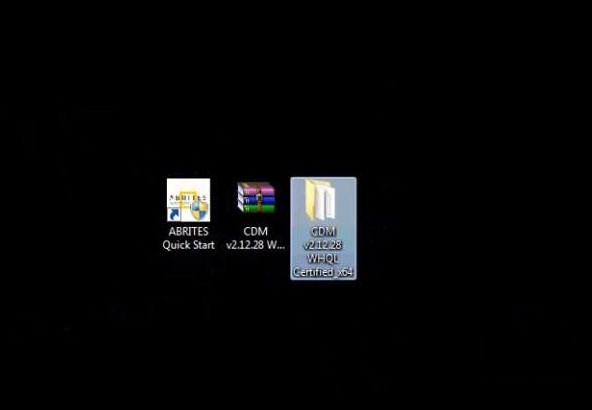
Download USB FTDI v2.12.28 driver above and extract to desktop

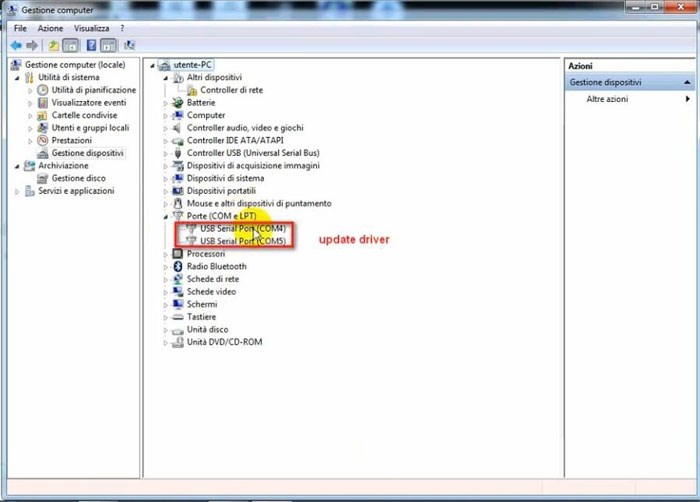
  1. Update USB Serial Port COM4 & COM5

Go to computer device manager to check USB driver version

Right click on USB Serial Port COM4-Property

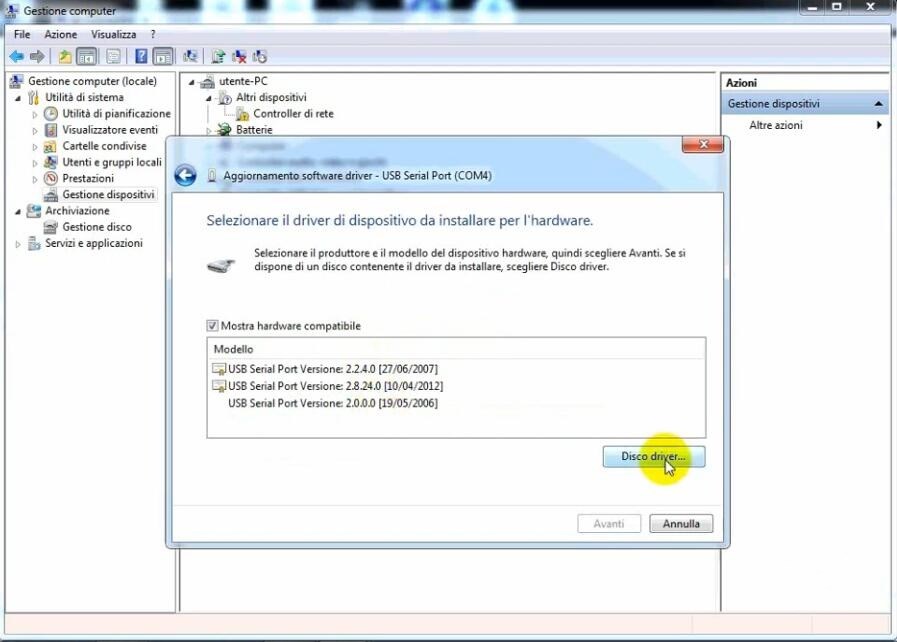
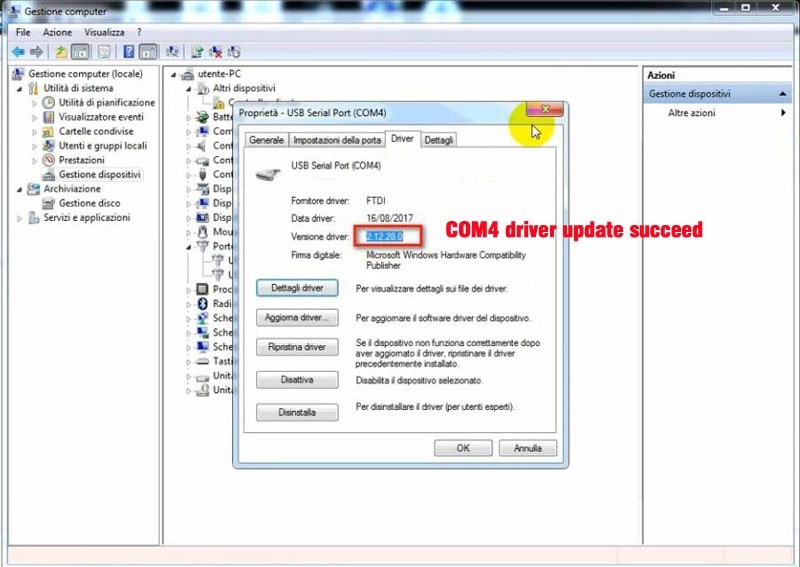
COM4 USB driver version is too low

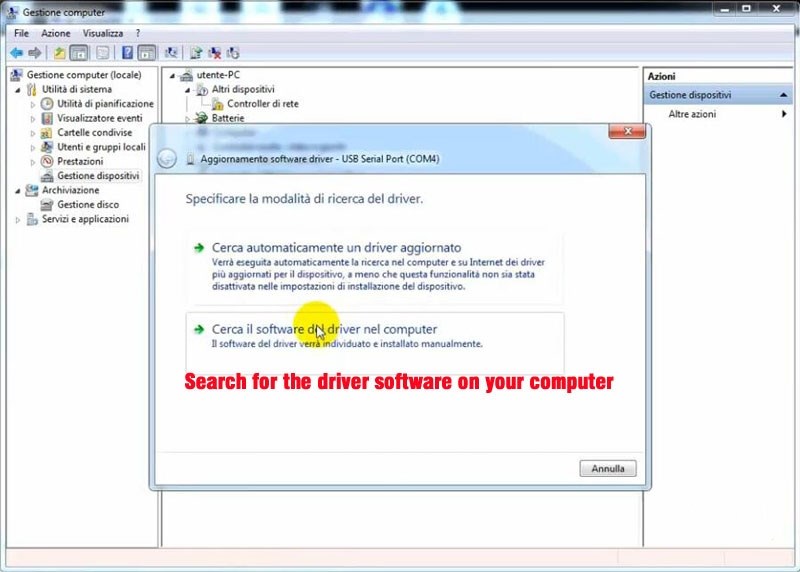
Right click COM4 to select Search for the driver software on your computer

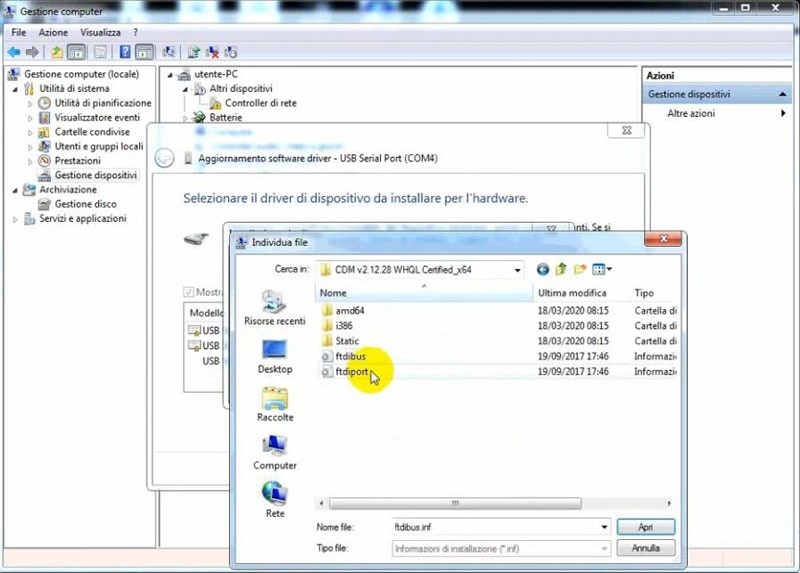
Choose driver software destination folder, replace COM4 FTDI driver in C:Users/Desktop/CDM v2.12.28 WHQL Certified_X64/ftdiport

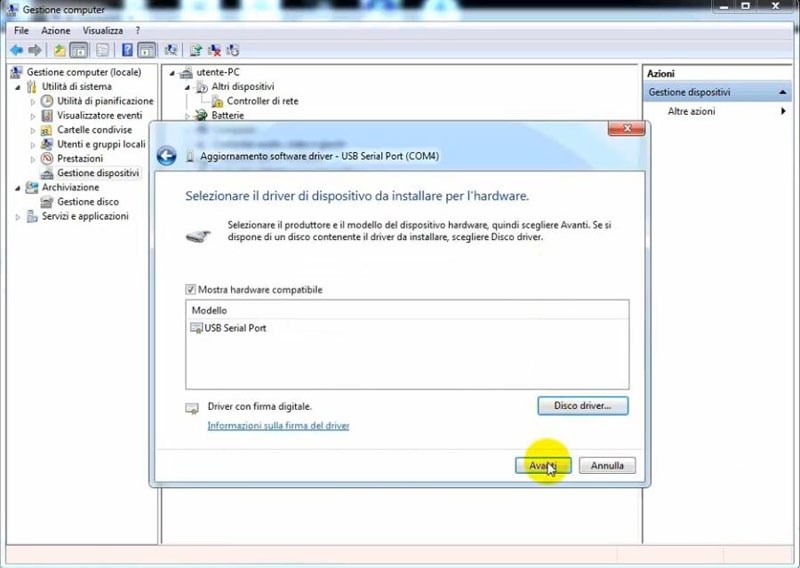
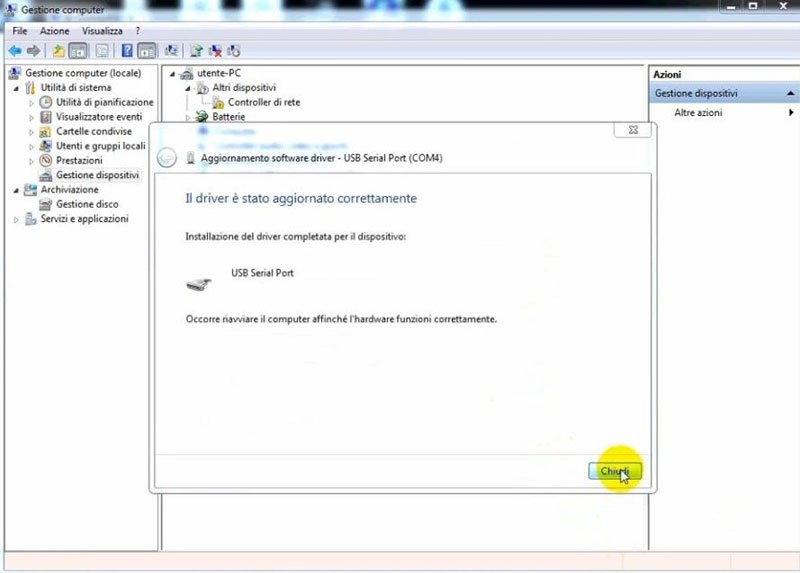
Update COM4 Port driver succeed

COM4 driver update to 2.12.28.0

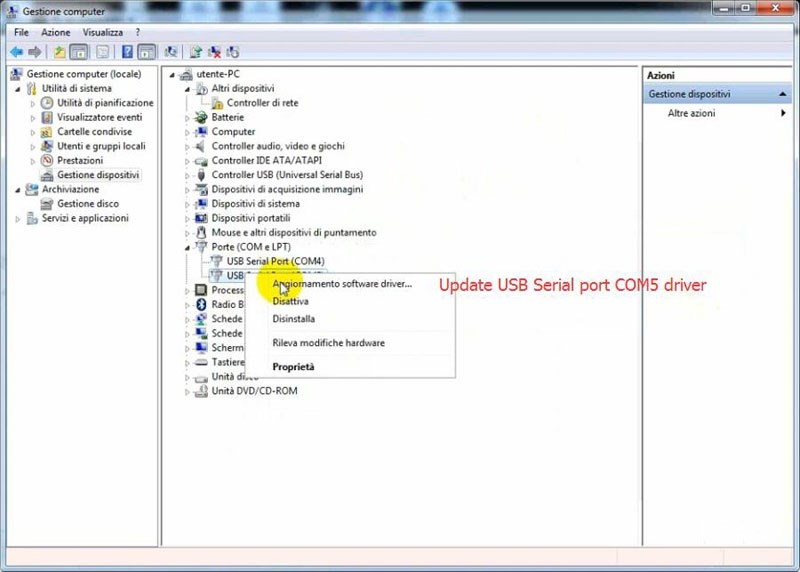
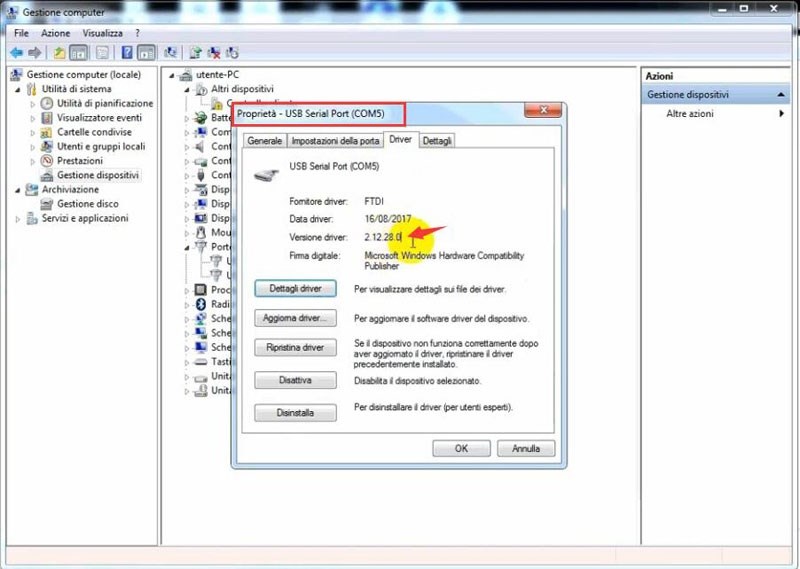
Follow same step to update COM5 USB driver

  1. Update USB Serial Converter A & B

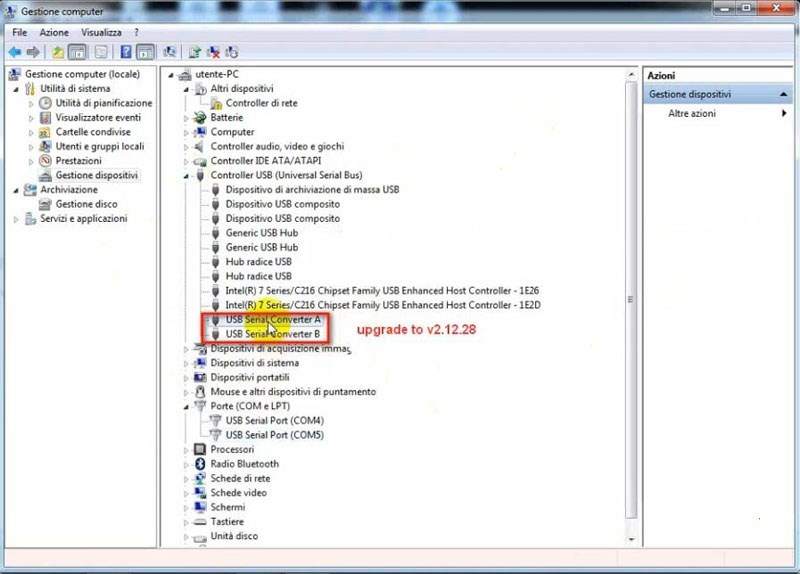
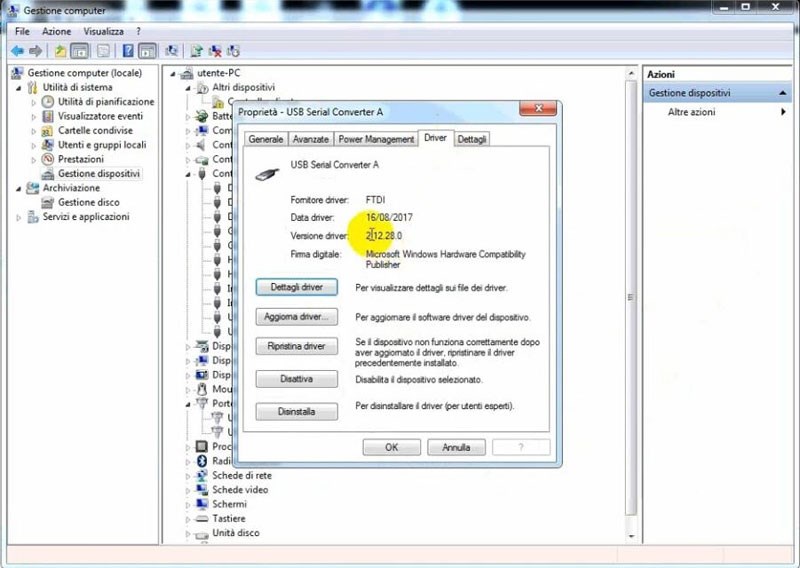
In Device manager, we need also update Controller USB (Universal Serial Bus). Update USB Serial Converter A and USB Serial Converter B

USB Serial Converter A version is too low

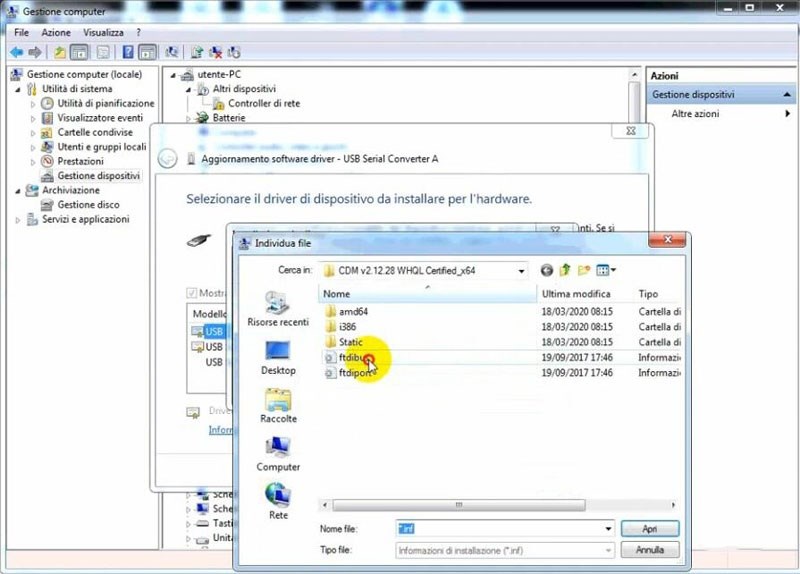
Right click to select Search for the driver software on your computer

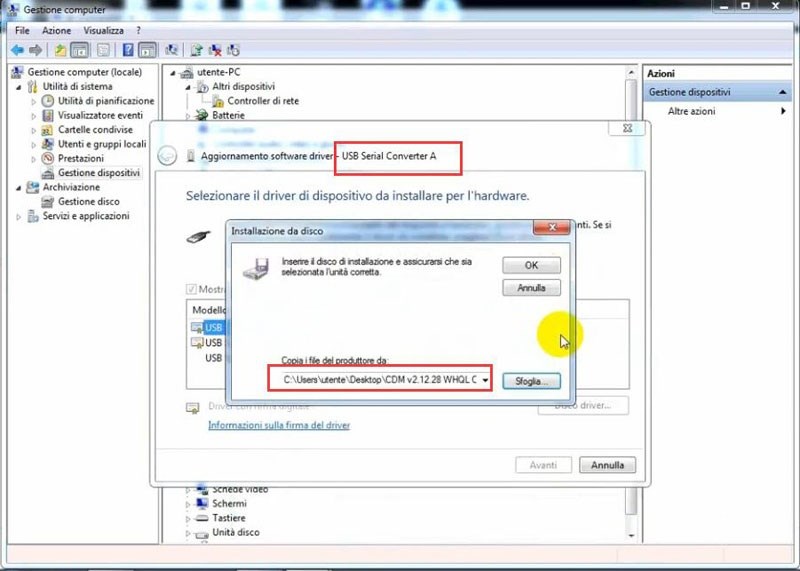
Choose to install and replace driver in C:Users/Desktop/CDM v2.12.28 WHQL Certified_X64/ftdibus

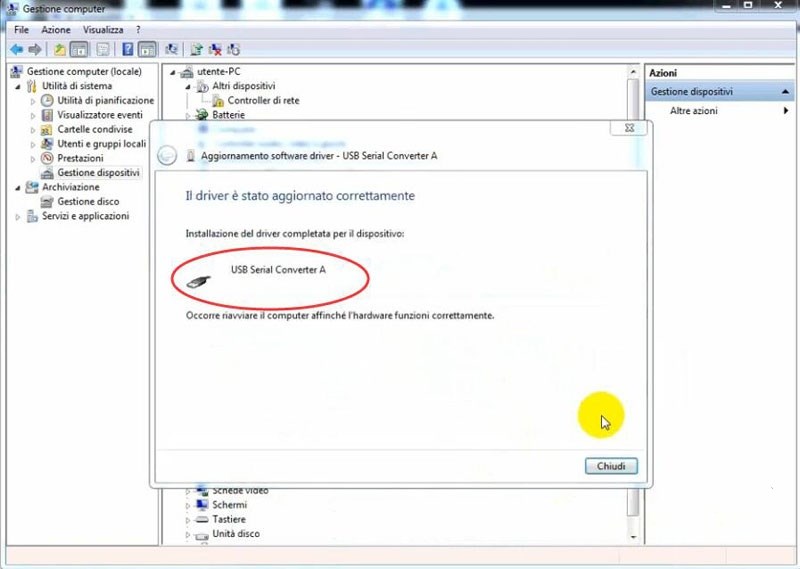
Update USB Serial Converter A driver succeed

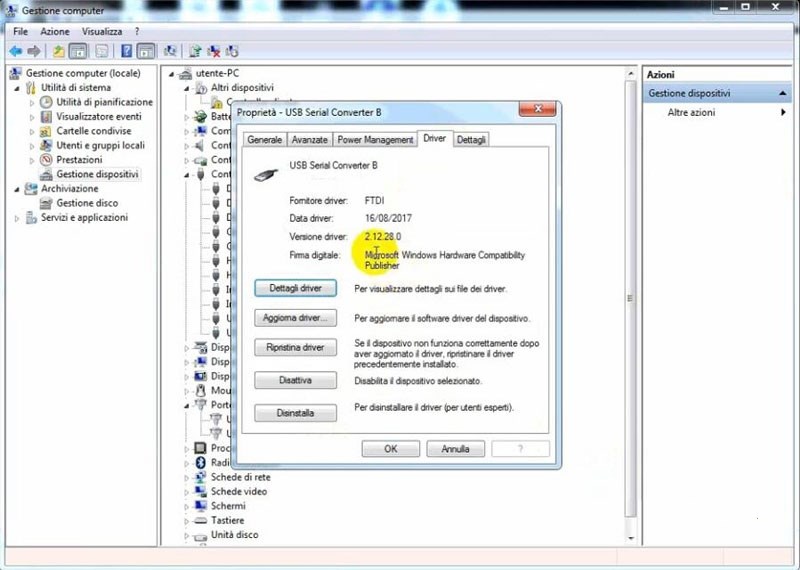
Follow same step to update USB Serial Converter B

Now SVCI 2020 software is ready to use.


https://www.obd2tool.com/blog/2020/04/03/how-to-solve-the-error-interface-not-connected-for-svci-2019-2020/

Wednesday, March 3, 2021

How to upgrade the firmware of SVCI 2020?

How to upgrade the firmware of SVCI 2020? In this post, you will find the answer.

Here are the steps:
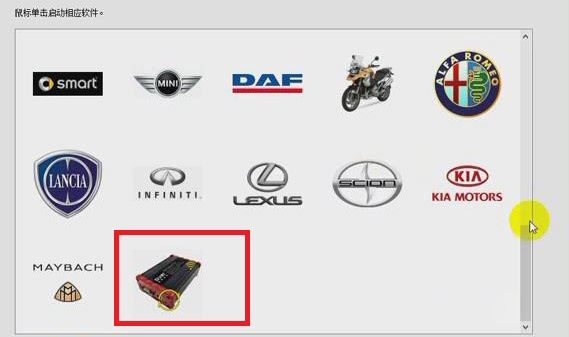
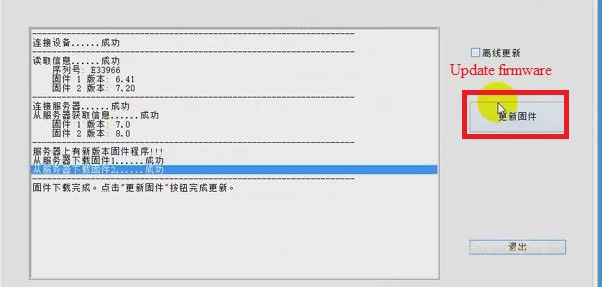
1.Click “SVCI 2020” button>> “Update firmware”.


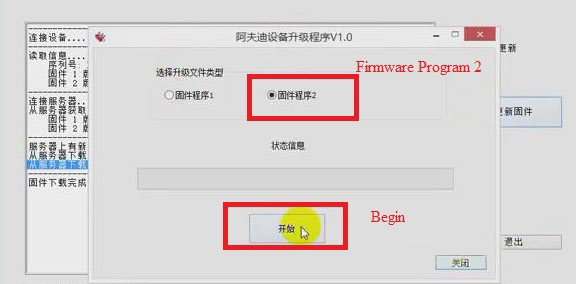
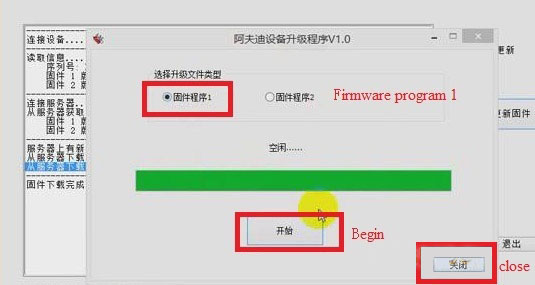
2.Choose “Firmware Program 2” and click “Begin”. Then Firmware Program 2 will be downloaded.

3.When the downloading of firmware program 2 is successful, click “Confirm”, and choose “Firmware program 1” and click “Begin”.Then firmware program 1 will be downloaded.

4.When the downloading of firmware program 1 is successful, click “Confirm”.
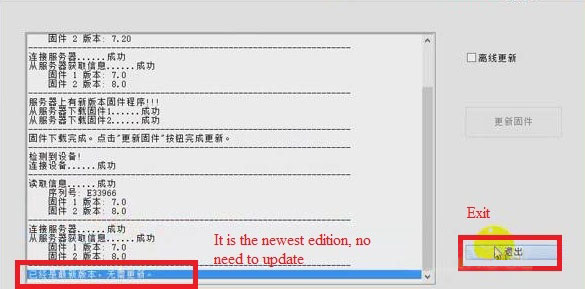
5.Click “Close”, now we can see that the firmware has been updated to the newest. Then click “Exit”.

Job is done!

Thursday, December 7, 2017

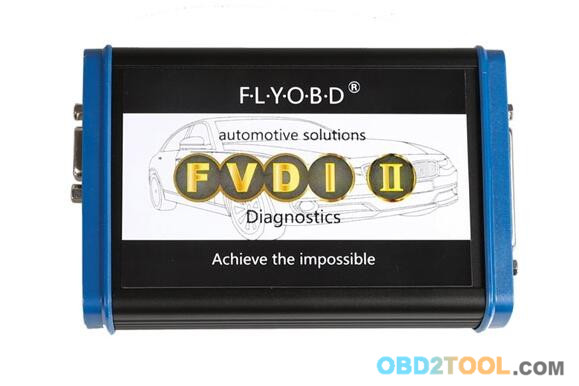
Best Porsche Diagnostic Tool, FVDI2 ABRITES Commander

If you still in a dilemma about investing in the best diagnostic tool for your precious Porsche vehicles, then this article will help you.
Here, What we recommend is V4.1 Porsche FVDI2 ABRITES Commander
10-1
ABRITES Commander for Porsche is professional software for diagnostic of Porsche vehicles. It is capable to perform a diagnostic of any unit. It provides some unique functions, which are not supported by any other diagnostic tool.
What’s FVDI2 Commander Supported Porsche vehicles?
Carrera GT
Carrera GT2 (996)
Carrera GT3 (996)
Boxster (986)
Boxster S (986)
Boxster (997)
Cayman (987)
Cayenne (955)
911 (997)
911 Turbo (996)
911 Turbo (997)
911 Carrera 4 (996)
Boxster 991 (2012+)
911 991 (2012+)
Cayenne 958 (2011+)
Panamera 970 (2010+)
So, what’s this Porsche diagnostic tool Standard diagnostic functions?
For all electronic control units reading identification data
Read and clear all electronic control unitserror (DTCs)
Read live data For 911 997, Boxster 987, Cayman, Cayenne electronic control units
For 911 997, Boxster 987, Cayman, Cayenne electronic units read/write coding
Broadcast – for the chosen model – scan all units and clear all DTCs
And what about the Special functions and its supported models?
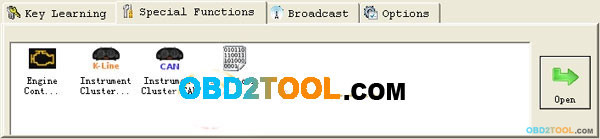
    Engine Control Unit
– ME7.x, ME7.5, ME7.8- Read/Write EEprom, Flash, Read Component Security bytes, Read Sec.access code, ECU Data
– ME5.2, ME7.2 – Read EEprom
– ME 7.8 – Porsche 9×7, 9×6 -Read EEprom
    Instrument Cluster K-Line
– Porsche Cayenne – Read/Write EEprom, Read/Change odometer
– Porsche 911, Boxter, GT2, GT3 (9×6) with 93c56 – 1998 – 07/2001 year – Read/Write eeprom, Read/Change odometer
– Porsche 911, Boxter, GT2, GT3 (9×6) with 93c86 – 08/2001 – 2005 year – Read/Write eeprom, Read/Change odometer
    Instrument Cluster CAN
– Porsche Cayenne – Read/Write EEprom, Read/Change odometer
– Porsche 9×7 – Mileage recalibration, Read/Write EEPROM, Reset service interval, Total distance, Oil level measurement
    Dump Tool
– IMMO – Kessy – Porsche Cayenne [93c86] – shows Sec.access code, Keys data, VIN, Immo number
– ECU ME7.x Reset Component protection data
– ECU ME7.x Security code / Checksum calculator
– Change Odometer ECU ME9 [95320] – Porsche 997
– Change Odometer 95P08 – Porsche 996
– Change Odometer 95P08 – Porsche 997
Finally, check its Advanced functions:
Calculate teaching code from Alarm system
– Porsche (9×6)
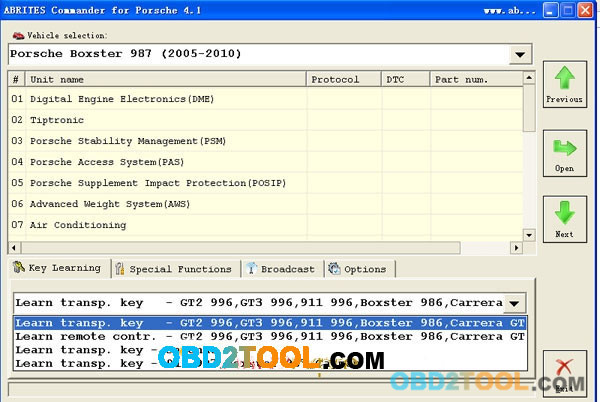
    Key Learning
– Learn transponder/key – GT2 996, GT3 996, 911 996, Boxster 996, Carrera GT
– Learn remote control – GT2 996, GT3 996, 911 996, Boxster 996, Carrera GT
– Learn transponder/key – Cayenne
– Learn transponder/key – 911 997, Bosxter 997, Cayman
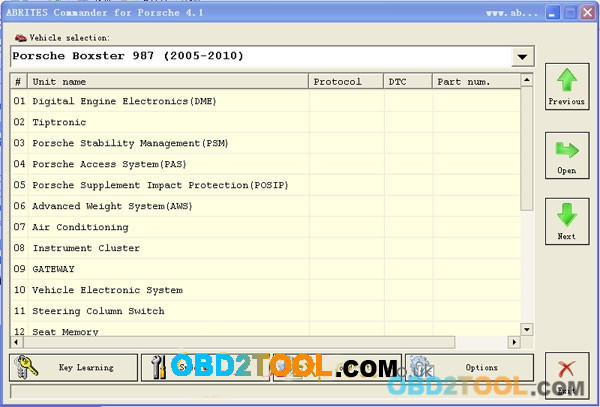
FVDI2 Commander Porsche software display:
10-2 10-3 10-4
What you will get in the package and where to buy the cheapest one?
http://www.obd2tool.com/category-184-b0-AVDI+ABRITES+Commander.html
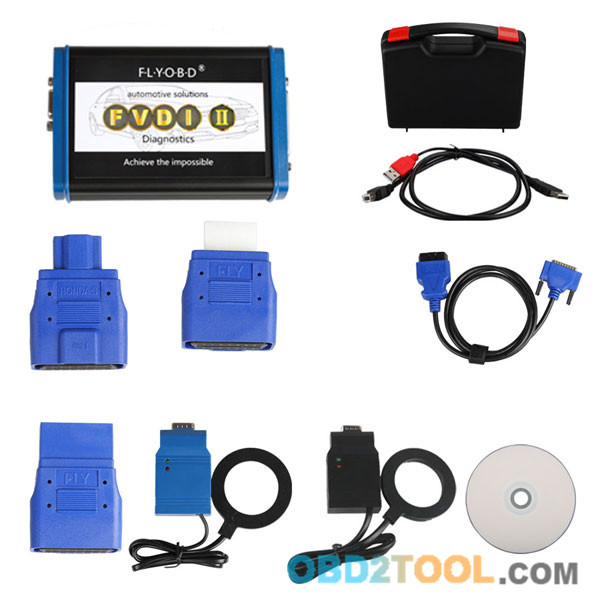
Package including:
1pc x FVDI Porsche main unit
1pc x USB Cable
1pc x USB Dongle
1pc x OBD2 Cable
1pc x CD software
1pc x Carrying case
10-5

How to Program Maserati Quattroporte 2004 All Keys Lost

A Maserati Quattroporte 2004 owner has lost all keys, straight remote key. Here is the locksmith solution on how to program a new key.
First try some OBD2 key programmers, SKP900, OBDSTAR X300, all failed. You have to remove BDM to write key.
9-1
Main steps:
1.Remove BDM
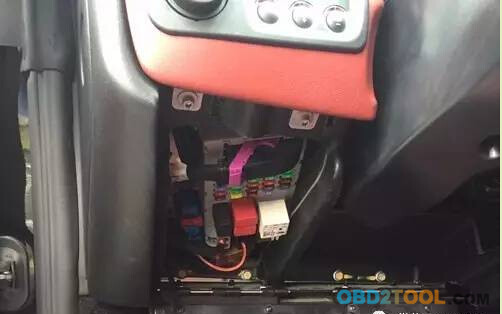
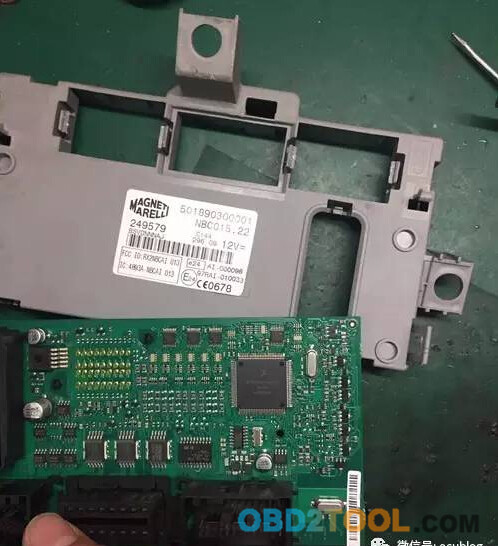
Quattroporte BDM is located under the dashboard. Open the shell, find out and locate CPU.
9-2
Xprog-M box higher version and VVDI Prog do have this cpu listed, but don’t have connection pinout. Spent a long time to analyse the CPU External alignment and finally connected it. It requires technical skills as well.
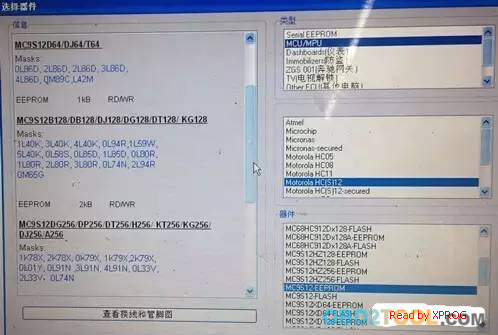
Read MC9S12 MCU eeprom via Xprog
Read eeprom data and save it.
9-3 9-4
2 Write key.
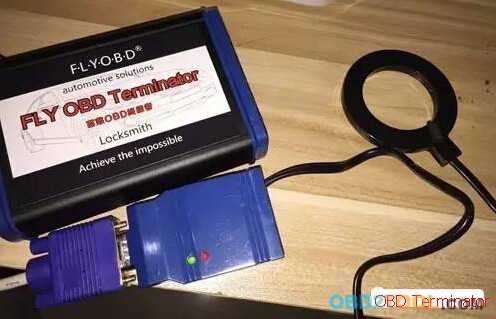
Key Programmer options: TM100,FLY FVDI2 or OBD Terminator
Example by using FLY OBD Terminator
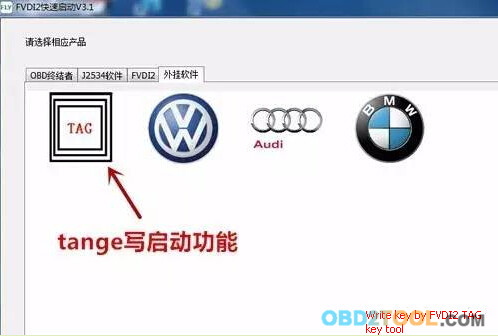
Open Tag key tool to write key
9-5
TAG key tool has similar menu as VVDI2
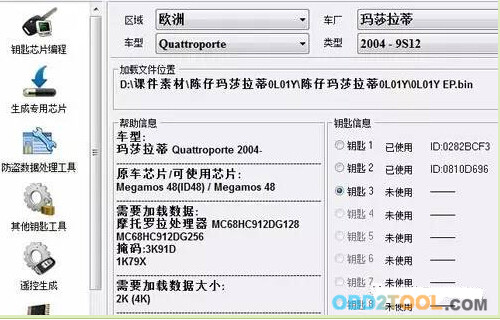
Select region Europe, Quattroporte,Quattroporte,2004-9S12
Upload eeprom
TAG software will display original key data
select a unused key position
9-6
place an ID48 into coil to write key
9-7
It will generate new key data.
Re-write the new key data back to CPU.
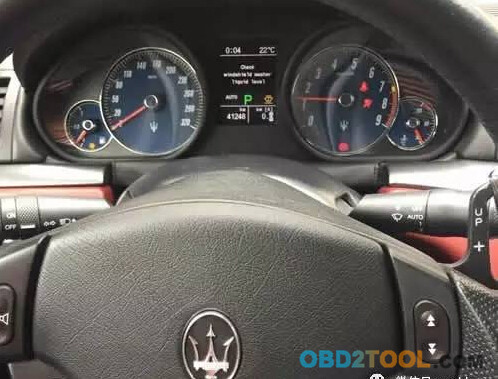
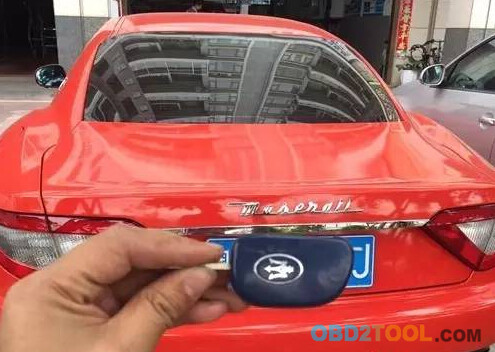
Reinstall BDM and start key with the new chip key.
9-8
9-9
If you need to program remote ,you can enter Fiat system and follow screen prompts to program.